Make printable cards with the card generator
Many structures run on cards: a question on the front, the answer on the back. In the card generator you fill a sheet of eight cards, yourself or with AI, and print it.
Step 1
Open the card generator
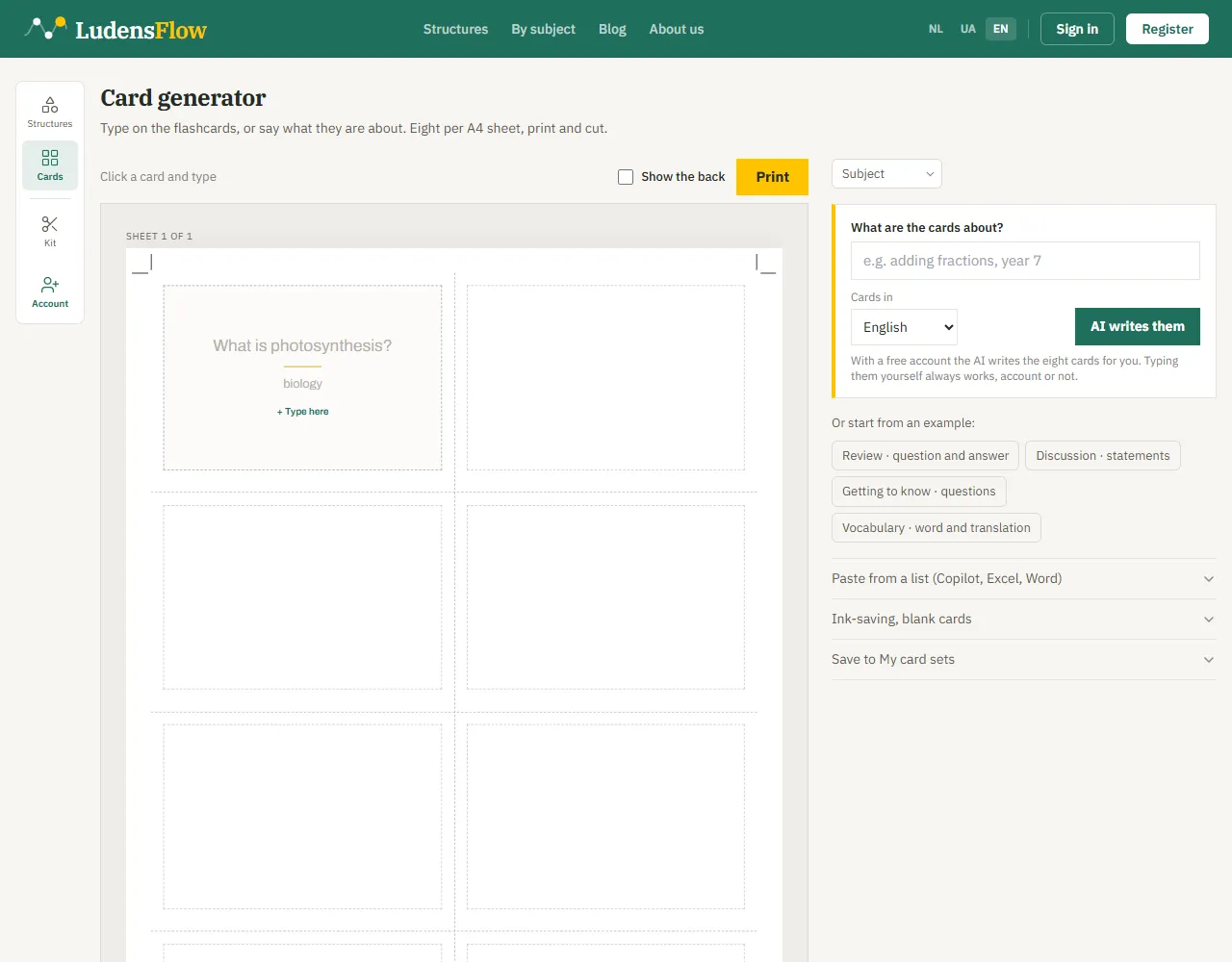
Click “Cards” in the left rail, or the row “Card generator” in the “Materials” block of a structure. You see an empty A4 sheet with eight cards. Typing works without an account, and what you fill in stays in your browser.
Step 2
Let the AI fill the sheet
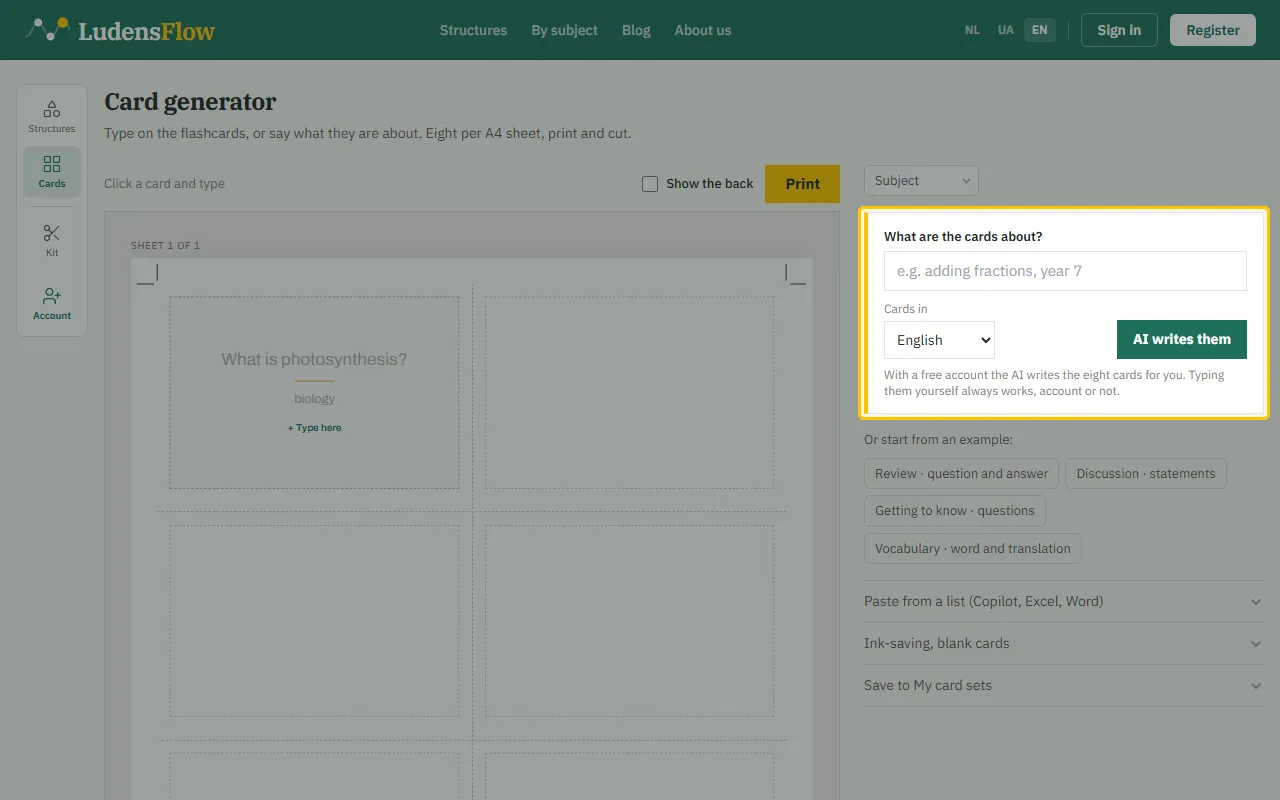
Under “What are the cards about?” type the topic and the grade, for instance adding fractions, grade 5. Choose the language under “Cards in” and click “AI writes them”. You get eight cards, exactly one A4 sheet. This needs a free account.
Step 3
Or start from an example
Below the field are four examples. Click one and the sheet is filled; then overwrite the texts with your own material. “New set” empties the sheet, “Show examples” brings the examples back.
Step 4
Write or paste your own cards
Click a card and type. Each card has “Large text” and “Small text”, and on the back “Answer”. Already have the questions in a list? “Paste from a list (Copilot, Excel, Word)” puts them all in at once. “Another sheet” adds eight more cards.
Step 5
Check the back and print
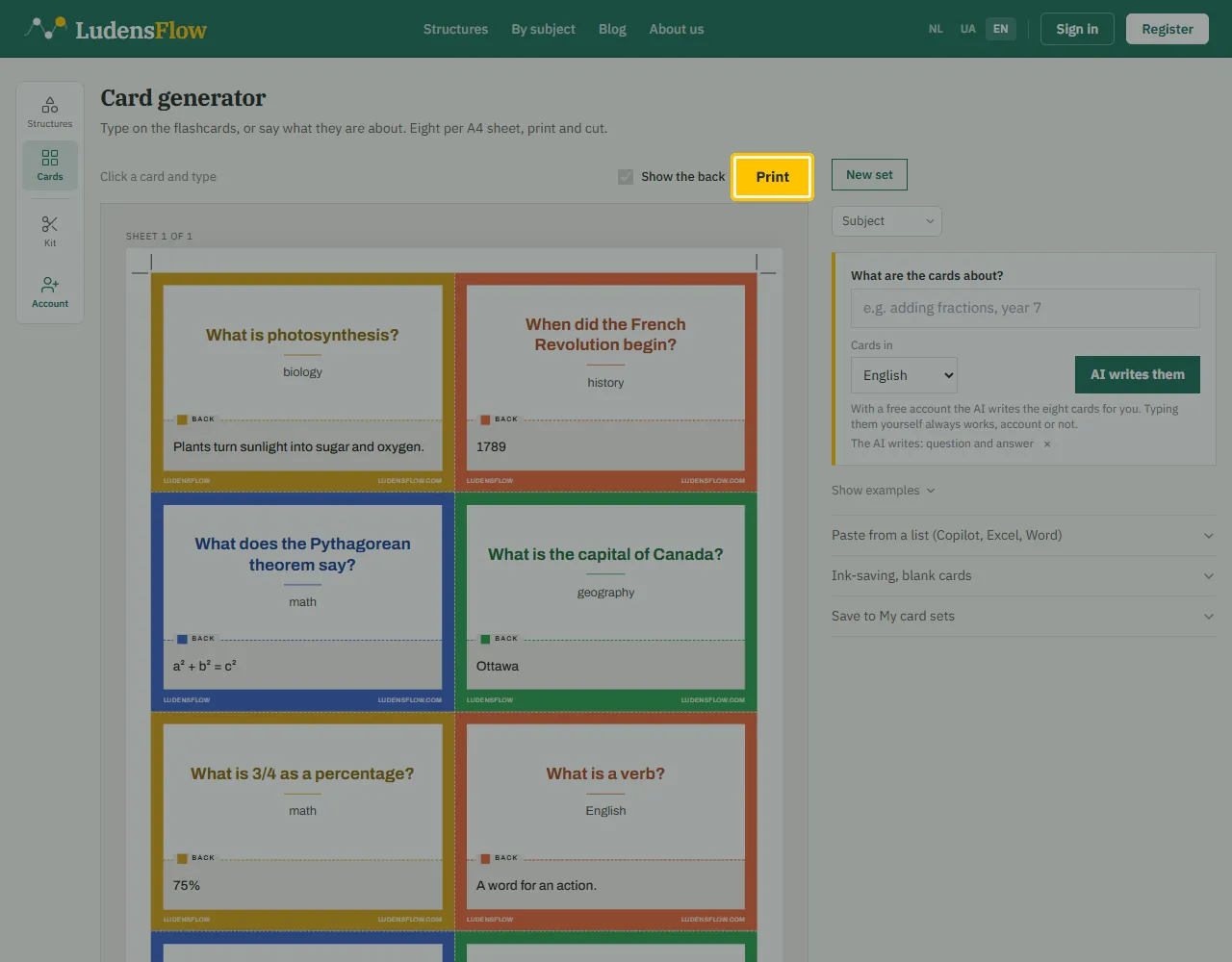
“Show the back” shows what goes on the back. Then click “Print”. The line under the button says how many sheets it takes and whether to print double-sided; in that case flip on the long edge. Under “Ink-saving, blank cards” you switch off the colour fills and add blank cards. Printing needs a free account.
Step 6
Save the set
With an account you keep the sheet with “Save to My card sets”. The set is then ready for another class or another year.
Step 7
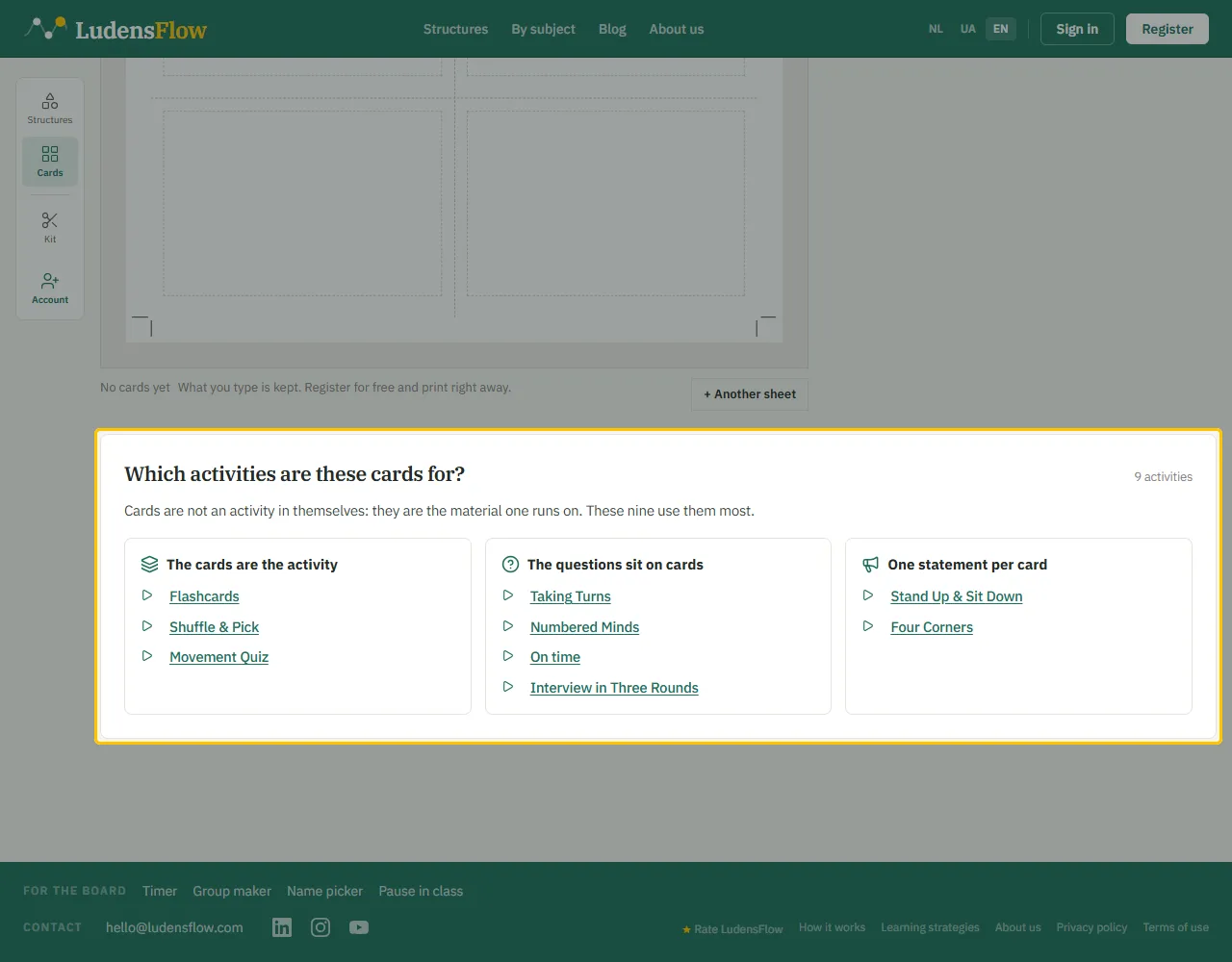
Pick the structure for these cards
At the bottom is “Which activities are these cards for?”. The structures are in three groups: the cards are the structure itself, the questions lie on the cards, or there is one statement per card. Click a structure to open it.